YouTube Shorts Safe Zone Checker
Check a still frame against adjustable planning margins, mark important content, and export an annotated Shorts guide.
Workbench Controls
Still image frames only. Client-side canvas overlay calculation.
Output & Inspection
Before and After Inspection
A fictional example processed with this tool. Your image and settings will produce different results.
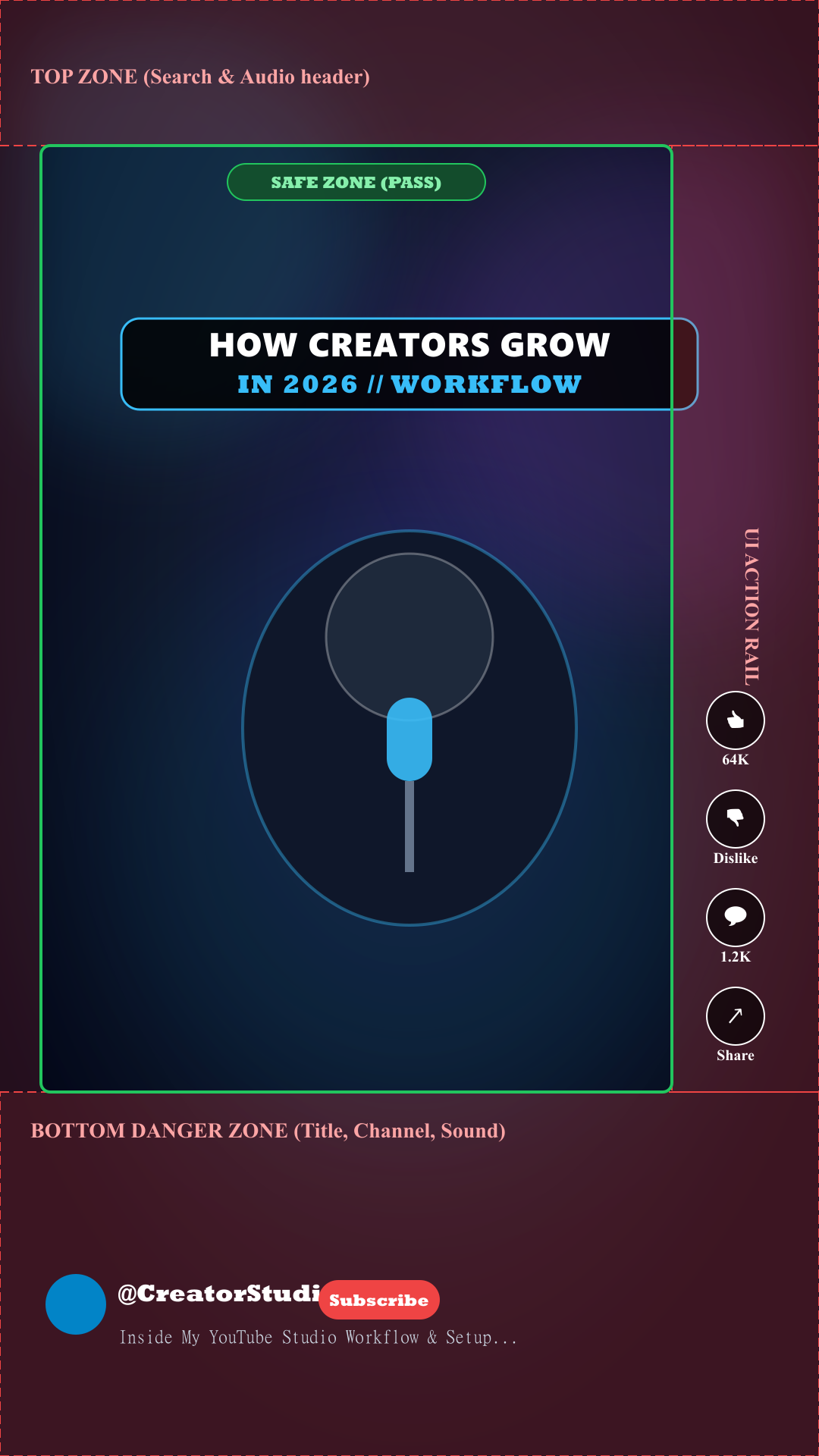
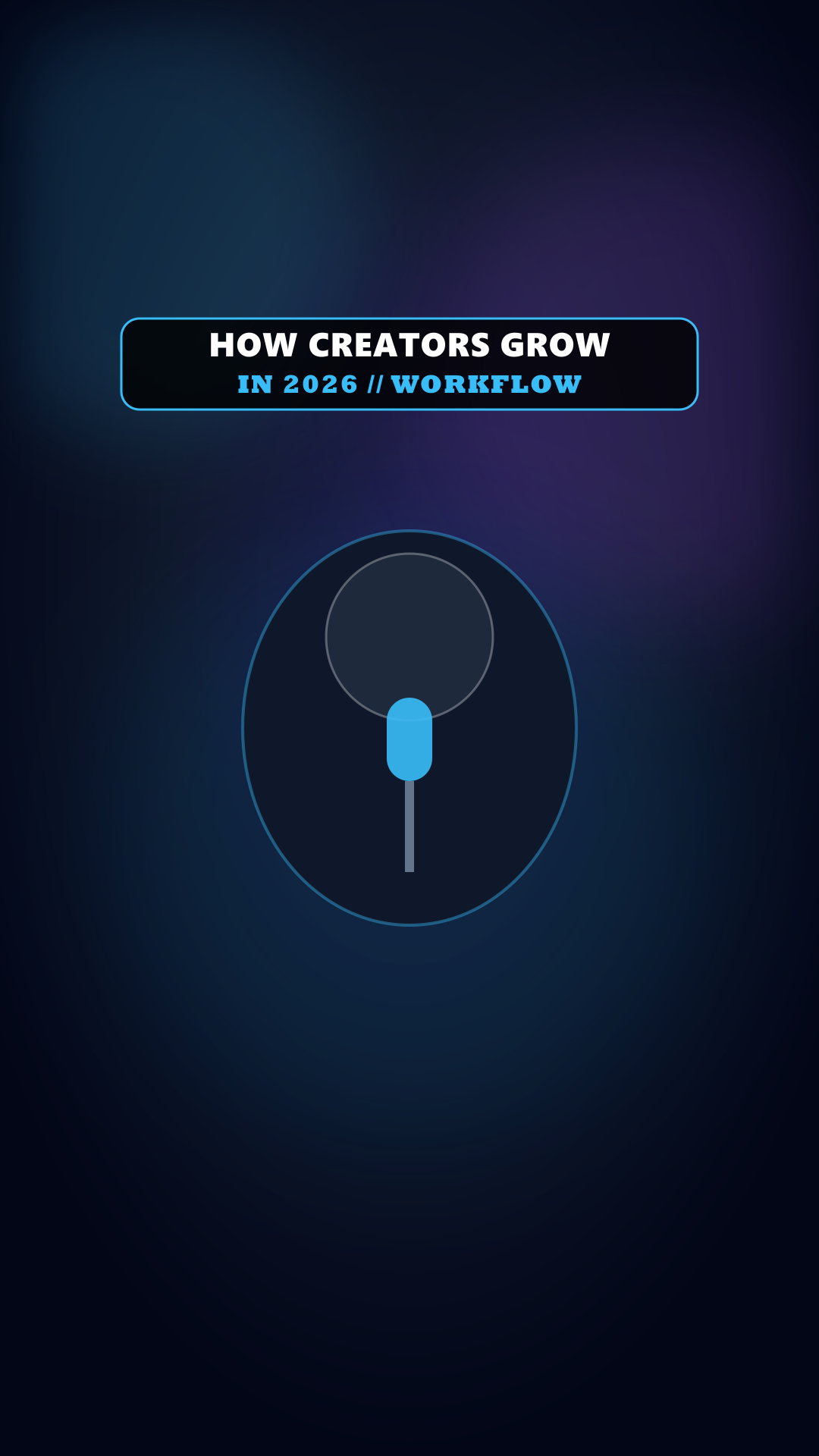
Starting margins: top 10%, bottom 25%, left 5%, right 18%. The shaded edges are manual planning assumptions, not official YouTube safe zones. Annotations are included in this export.
How to use this tool
Standard workflow recommendations for consistent publish quality
- STEP // 01
Choose a still frame
Export a representative frame from your video, then select its JPEG, PNG, or WebP image.
- STEP // 02
Plan your margins
Adjust reserved edges and optionally place a content box over important text or a subject. Review any overlap.
- STEP // 03
Export the guide
Create the annotated PNG for reference. Keep your clean source for publishing and check the actual Shorts player.
About YouTube Shorts Safe Zone Checker
Choose a still frame. The tool fits it into a 9:16 canvas, adding black padding when needed. Adjust the reserved margins to approximate the player layout you want to plan around. The defaults are starting assumptions, not official YouTube measurements.
Enable the content box and position it over your important text or subject. The checker reports whether that box overlaps your chosen margins. It does not detect actual content or analyze a video.
Create a PNG guide to download a 1080 × 1920 annotated planning reference. The download always includes the guide, even when the on-screen overlay is hidden. Use your clean source for publishing and inspect it in the actual Shorts player.
Frequently Asked Questions
What is the safe zone for YouTube Shorts?
How to keep text inside the YouTube Shorts safe zone?
What are the YouTube Shorts safe zone dimensions?
Where should captions be placed in YouTube Shorts?
How to prevent YouTube Shorts buttons from covering text?
Related Creator Tools
Complementary utilities for your YouTube pre-publish checklist
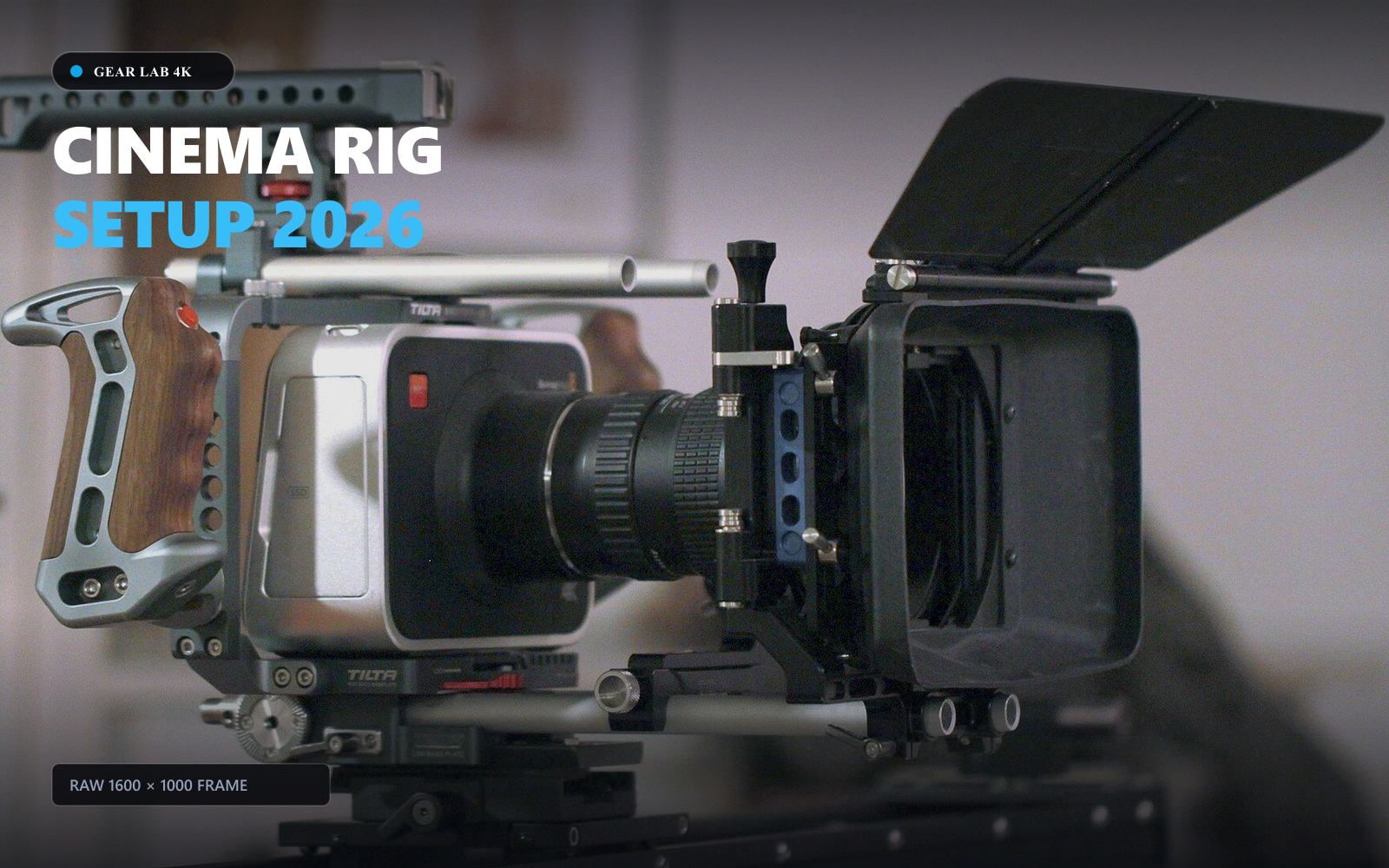
YouTube Thumbnail Resizer
Resize thumbnails, channel banners, profile pictures and watermark assets locally, with framing guides, custom dimensions and image downloads.
How I Automated My Workflow...
 TechCreator • 120K views
YouTube Title Checker & Analyzer
Check title length, punctuation, whitespace, and topic phrase placement with an illustrative wrapping preview.
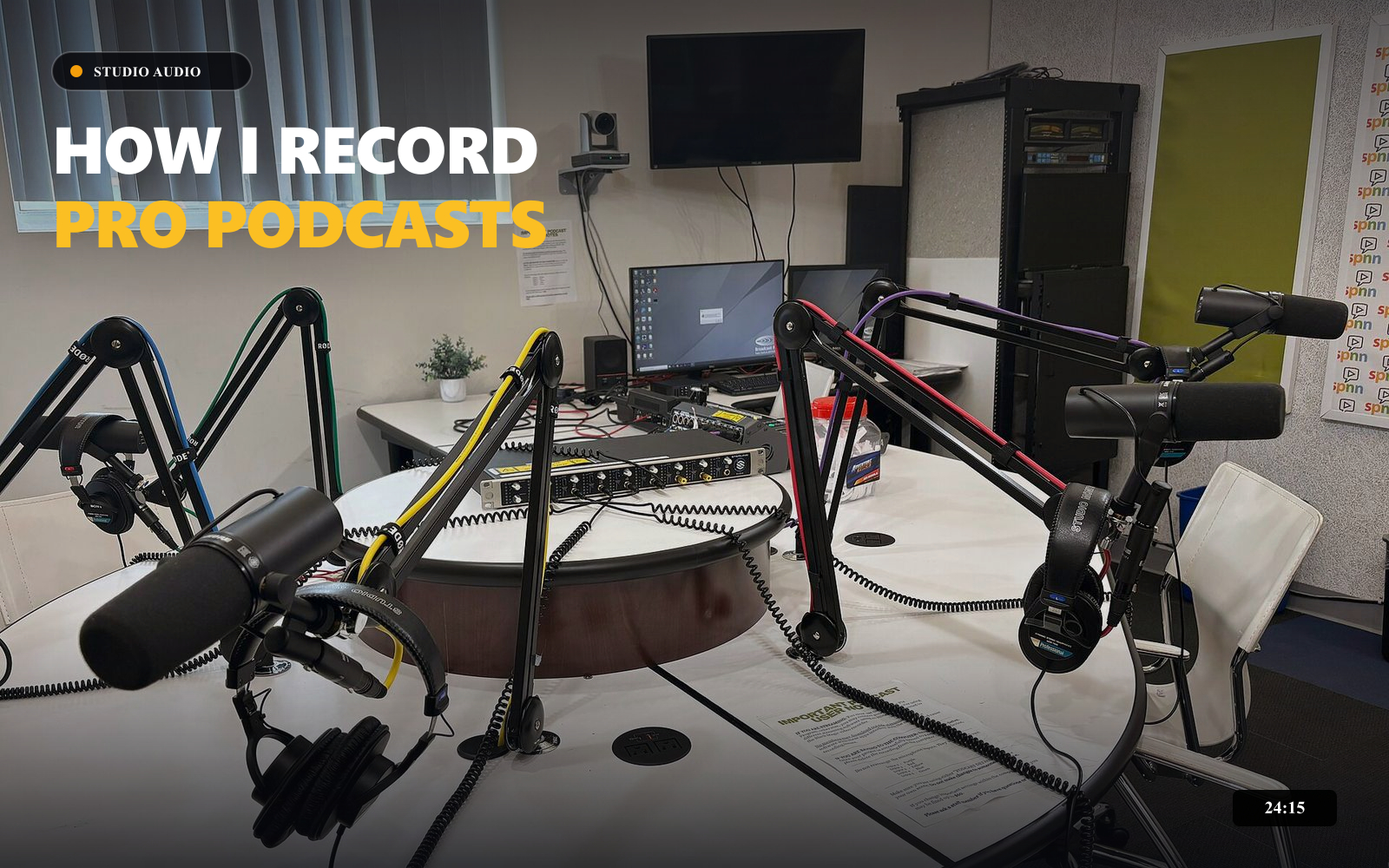
YouTube Thumbnail Compressor
Compress up to 10 JPEG, PNG, or WebP thumbnails locally. Compare each result and download images individually or together as a ZIP.