YouTube Thumbnail Resizer
Resize thumbnails, channel banners, profile pictures and watermark assets locally, with framing guides, custom dimensions and image downloads.
Workbench Controls
What are you preparing?
Choose a starting canvas. Fine-tune the framing below.
Choose an image to begin.
Output & Inspection
Thumbnail 1280 × 720
Your artwork goes here
Choose an image or try a sample to preview its framing on this canvas. This diagram is a guide, not an exported result.
Before and After Inspection
A fictional example processed with this tool. Your image and settings will produce different results.
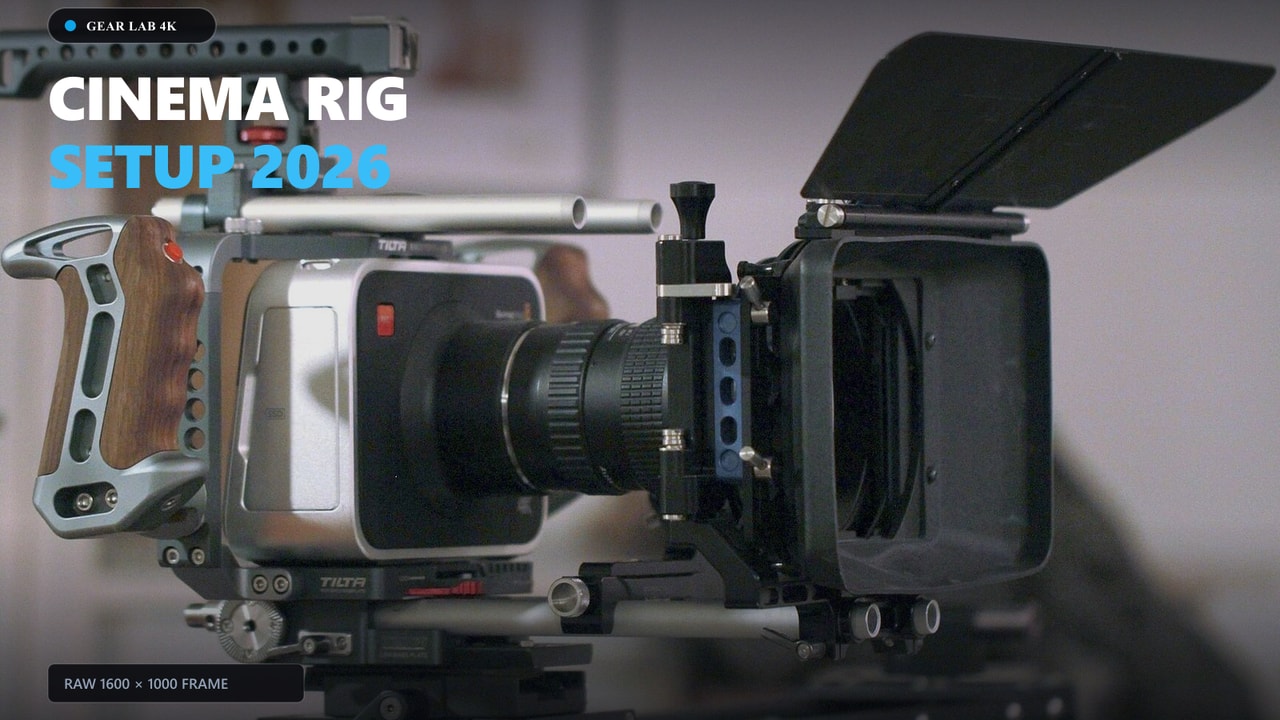
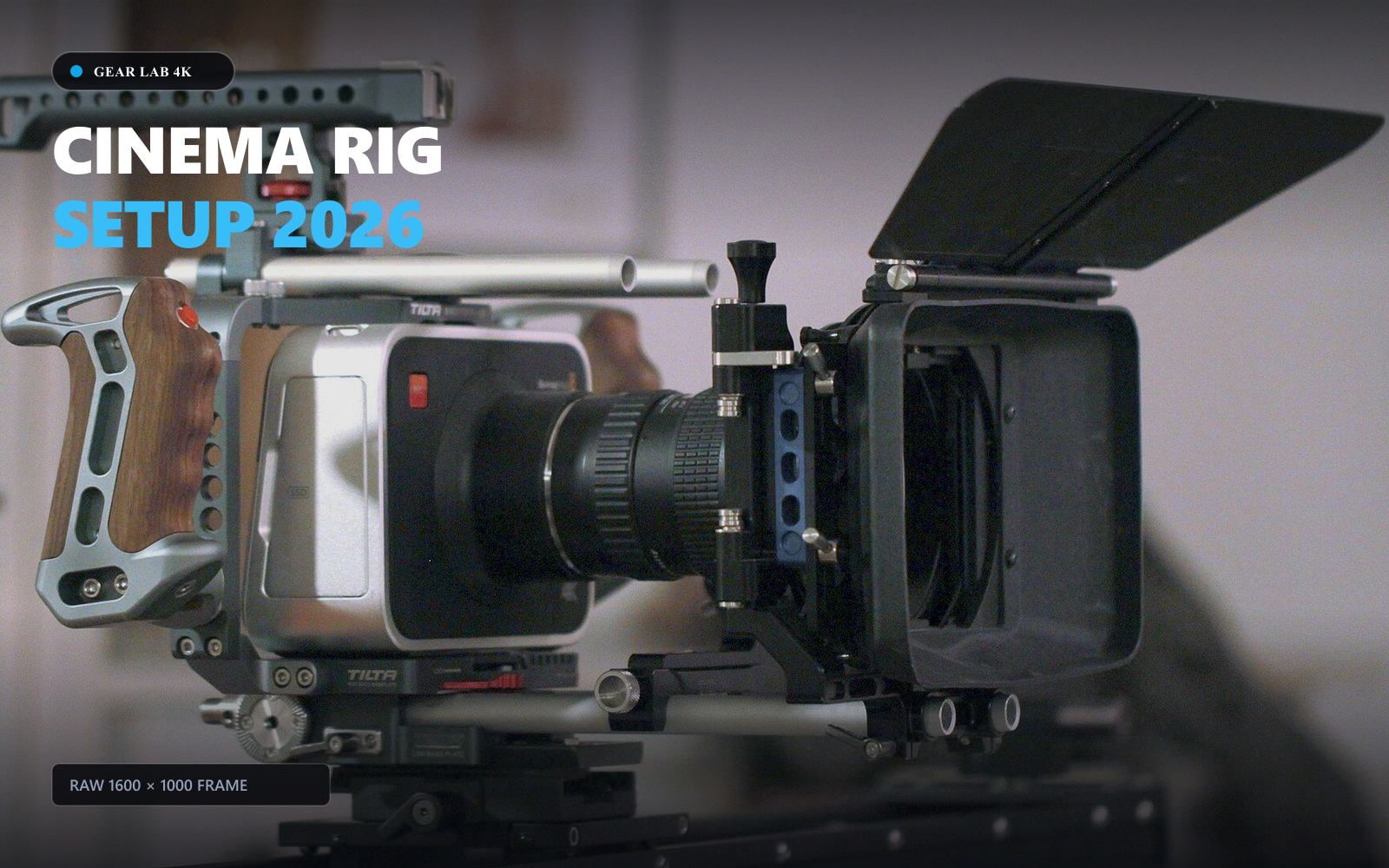
Center crop to fill a 16:9 canvas, exported as JPEG at 90% quality. Top and bottom edges are cropped; the image is not stretched.
How to use this tool
Standard workflow recommendations for consistent publish quality
- STEP // 01
Choose your canvas
Start with a thumbnail, banner, profile picture or watermark preset, then choose a still JPEG, PNG or WebP image.
- STEP // 02
Set the framing
Adjust cropping or padding. Preview-only banner and circle guides help you position important content; custom sizes remain available.
- STEP // 03
Resize and review
Select Resize artwork and inspect the actual output. Download it, then check the crop in YouTube’s upload preview. Compress afterward if needed.
About YouTube Thumbnail Resizer
Prepare a thumbnail, channel banner, profile picture or watermark asset from a still JPEG, PNG or WebP. Crop to fill trims edges; fit entire image adds padding. All exports remain rectangular.
The banner preset uses 2560 × 1440. Its preview guide scales the central 1235 × 338 text/logo area published for a 2048 × 1152 banner. The 800 × 800 profile canvas is a Creovly preset, with an illustrative circle guide. The watermark canvas is 150 × 150; it prepares an asset without placing it on a video or removing its background.
Guides never appear in downloaded files. Review your artwork in YouTube’s own upload preview. YouTube specifies banners at 6 MB or smaller and watermark images below 1 MB. See YouTube’s channel branding guidelines for current requirements.
Inputs are limited to 20 MB, 24 megapixels and 8,192 pixels per side. Output canvases use the same dimension limits. Resizing changes dimensions, not a target file size. Enlarging cannot recover detail. Exports may remove metadata or change colors.
Frequently Asked Questions
What is the best YouTube thumbnail size in 2026?
How to resize an image for a YouTube thumbnail?
How to convert an image to 1280x720 pixels?
What is the YouTube thumbnail aspect ratio?
How to resize a YouTube thumbnail without cropping?
Related Creator Tools
Complementary utilities for your YouTube pre-publish checklist
YouTube Thumbnail Compressor
Compress up to 10 JPEG, PNG, or WebP thumbnails locally. Compare each result and download images individually or together as a ZIP.

Logo Background Remover
Remove a solid-color background from your existing logo locally. Compare before and after, then download a transparent PNG.
How I Automated My Workflow...
 TechCreator • 120K views
YouTube Title Checker & Analyzer
Check title length, punctuation, whitespace, and topic phrase placement with an illustrative wrapping preview.